A convenient way to manage PGP keys for signing and encrypting email messages
Digital email signing and encryption
The Roundcube web application provides a secure, user-friendly way to sign and encrypt email messages. Click More to view detailed instructions.
A PGP (Pretty Good Privacy) key is the basis for successfully signing email digitally and encrypting messages. A PGP key consists of two parts: a public part (Public PGP key) and a private part (Private PGP key).
The public PGP key is intended to be shared with the recipient. This allows you to encrypt the content of an email message using the recipient's public PGP key. This ensures that the message can only be decrypted by the recipient, i.e. the owner of the private PGP key. It is therefore important not to share your private key and to store a backup copy in a secure location.
Exchanging PGP keys is only necessary for encrypting messages; it is not required simply to sign sent email digitally.
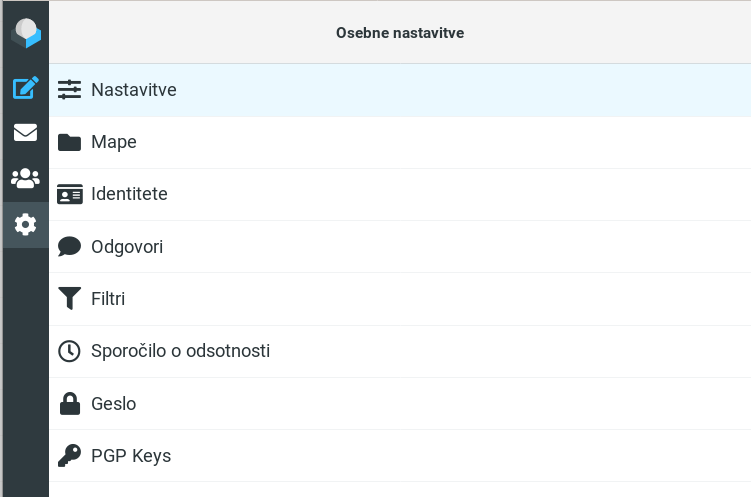
After signing in successfully, create a new PGP key by clicking the gear icon in the left-hand navigation menu to open your personal settings
and click the "PGP Keys" tab

In mobile view, tap the three-dot icon in the top-right corner and then "Create"

In desktop view, simply click the Create icon

in the middle of the right-hand "PGP Keys" panel
In the next step, choose a password for the new PGP key and select its size. A key size of at least 4096 bits and a password of at least 8 characters are recommended.
This is all you need for a digitally signed message. However, you must click the signature icon in the top-right corner

and select the following options:
You can also set these options as defaults, so you do not have to do this each time you send an email. To do so, click the gear icon in the left-hand navigation menu to open the settings:
Under the Settings tab, select Encryption

> Encryption

Then enable encryption and select the desired default options:

The "Keep private key passwords for" option determines how long you allow the server to remember your PGP key. During this period, you do not need to enter your PGP key password each time you send a message. Selecting "the whole session" means that the password will only be required for the first message sent after you sign in successfully.
Encrypting an email message requires you to exchange public PGP keys with the recipient. With the settings selected above (the "Attach my public PGP key by default" option), it is automatically attached to every new message you send.
In the next step, enter the PGP key password:
The recipient can import the public PGP key you sent and share their public PGP key with you in the same way.

Once the keys have been exchanged, it is possible to
After entering the password we selected for our PGP, the full content of the email message is displayed.